Verified trading results: why a journal with no CSV uploads is harder to fake
Broker-synced trades give viewers more to check than a screenshot. How verification works, why TickProof excludes uploads and what verification leaves open.
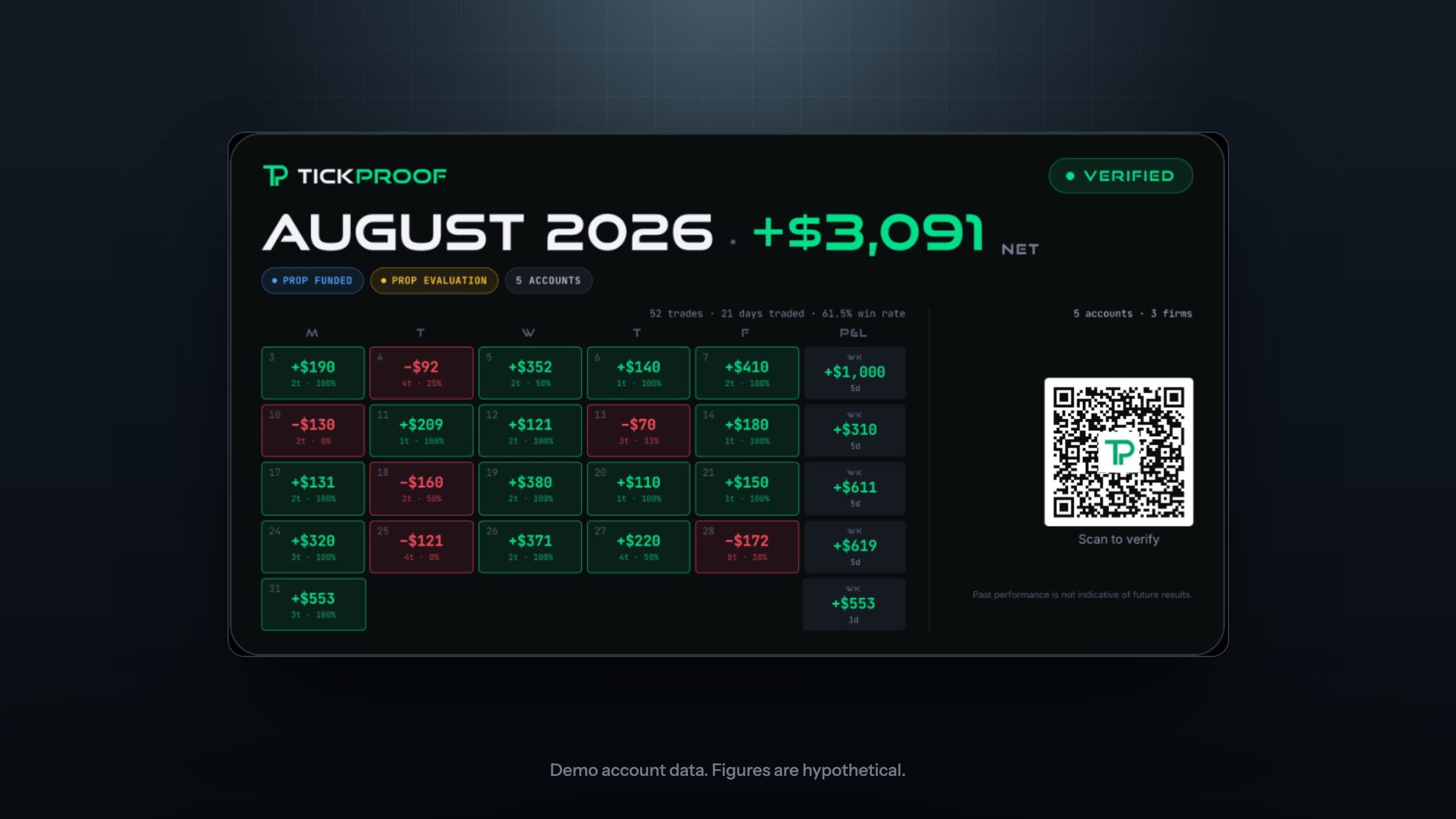
A trading screenshot can show a winning month. It can’t establish where the numbers came from or what was left outside the frame. A broker-synced record gives you more to work with. You can inspect the trades behind the total, check the account type and see exactly which dates the result covers.
TickProof takes a strict approach: trades enter the journal only through its Tradovate connection. Traders can’t upload a CSV, enter a trade by hand or edit the trades behind a proof. That closes an easy route to fabricated results. It still leaves questions worth asking, including who placed the trades and which accounts the trader chose to share.
What “verified trading results” should mean
A useful verification process establishes where the trading data came from and how it became the result you see. Before trusting a verification badge, ask:
- Where did the trades come from? Were they retrieved from the broker or supplied by the trader?
- Can the trader change the underlying record? Could someone add a winning trade, edit a loss or delete an inconvenient result?
- What can a viewer inspect? Does the public page show the trades, accounts and dates behind the headline?
Platforms use “verified” to describe different checks. Some verify trading history. Others also check account access or review payout documents. Read what the badge covers before drawing conclusions from it.
Why screenshots and CSV uploads leave room for doubt
Screenshots show only what someone chose to capture
A P&L screenshot is easy to share and easy to alter. Someone can edit the image or change a number displayed in a browser before taking it. Even an untouched screenshot gives you a limited view. It may leave out the account type, the full date range or the losses before and after the period shown. A screenshot can illustrate a result. Establishing its source takes more evidence.
Uploaded files remain under the trader’s control
A CSV export can be opened, edited and saved before it reaches a journal. Manual entry gives the trader the same control over the data. Uploads are useful for private analysis, especially when a trader uses several platforms. Many people use them honestly. The difficulty for a viewer is establishing whether a particular file was changed.
The verified record needs a clear boundary
A journal can support manual entries while keeping them separate from its verified results. DT Terminal, for example, says its verified records use synced fills and labels hand-entered results as self-reported (DT Terminal’s verification page). The question is whether trader-supplied data can enter the record carrying the verification badge. TickProof avoids that ambiguity by excluding trade uploads and manual trade entry altogether.
How TickProof makes trading results harder to fake
TickProof is a trade journal built for futures prop firm traders. Its proofs start with the same broker-synced records traders use in their journal.
Trades come directly from Tradovate
TickProof currently connects to Tradovate. You authorize the connection on Tradovate’s own sign-in page, so TickProof never sees your password. The connection reads account information and trading records. It cannot place, change or cancel orders. Every trade in TickProof comes through that connection. There is no CSV upload or manual trade-entry option.
The figures are calculated from the trades
Net P&L, win rate, trade counts and daily totals are calculated from the synced record. Broker-reported commissions and fees feed into those calculations. The trade list shows commissions, and a trade is flagged if the broker had not reported all its costs when the proof was created. That gives viewers a way to inspect the numbers behind the headline.
Each proof preserves a fixed record
When a trader creates a proof, TickProof captures the trade list and summary figures for the selected accounts and period. The trader cannot edit that snapshot afterward. Its card and public page refer to the same captured record.
The trader can revoke the proof. If that happens, its page displays “This proof was removed by its owner.” A proof therefore records what TickProof verified when it was created. Check the verification date separately from the accounts’ current sync status.
Removing an account leaves a visible trace
Traders cannot add, edit or delete individual trades. Removing a single trading account preserves its history and existing proofs. The account remains listed as removed on the trader’s profile.
Deleting an entire Tradovate connection removes the associated trading history and revokes every proof containing those accounts, including proofs that also contain other accounts. These rules make removal visible. They cannot reveal another broker login the trader never connected.
Account types are part of the proof
TickProof sets each account’s type when it is connected and captures that type in the proof. The trader does not choose a label when sharing. Proofs distinguish Live, Prop Funded, Prop Evaluation and Paper accounts. Paper accounts cannot be combined with prop or live accounts in one proof, and paper-only proofs carry a SIM badge.
Those distinctions matter. An evaluation result, a funded-account result and a live-account result describe different trading contexts.
What viewers can check
Every TickProof card includes a QR code and a link to its public proof page. That page shows the full trade list for the selected accounts and period, along with the summary figures and account types. It also shows when TickProof verified the snapshot and whether each account is still syncing.
Viewers can check how much of the period was imported from broker history rather than tracked as it happened. For traders with multiple accounts, the page also shows the counts of connected accounts that are syncing, no longer syncing or removed. Paper accounts are excluded from those counts. If a trader shares a strategy or tag filter, the page labels it “Filtered view.” Viewers can remove the filter while keeping the proof’s accounts and date range fixed.
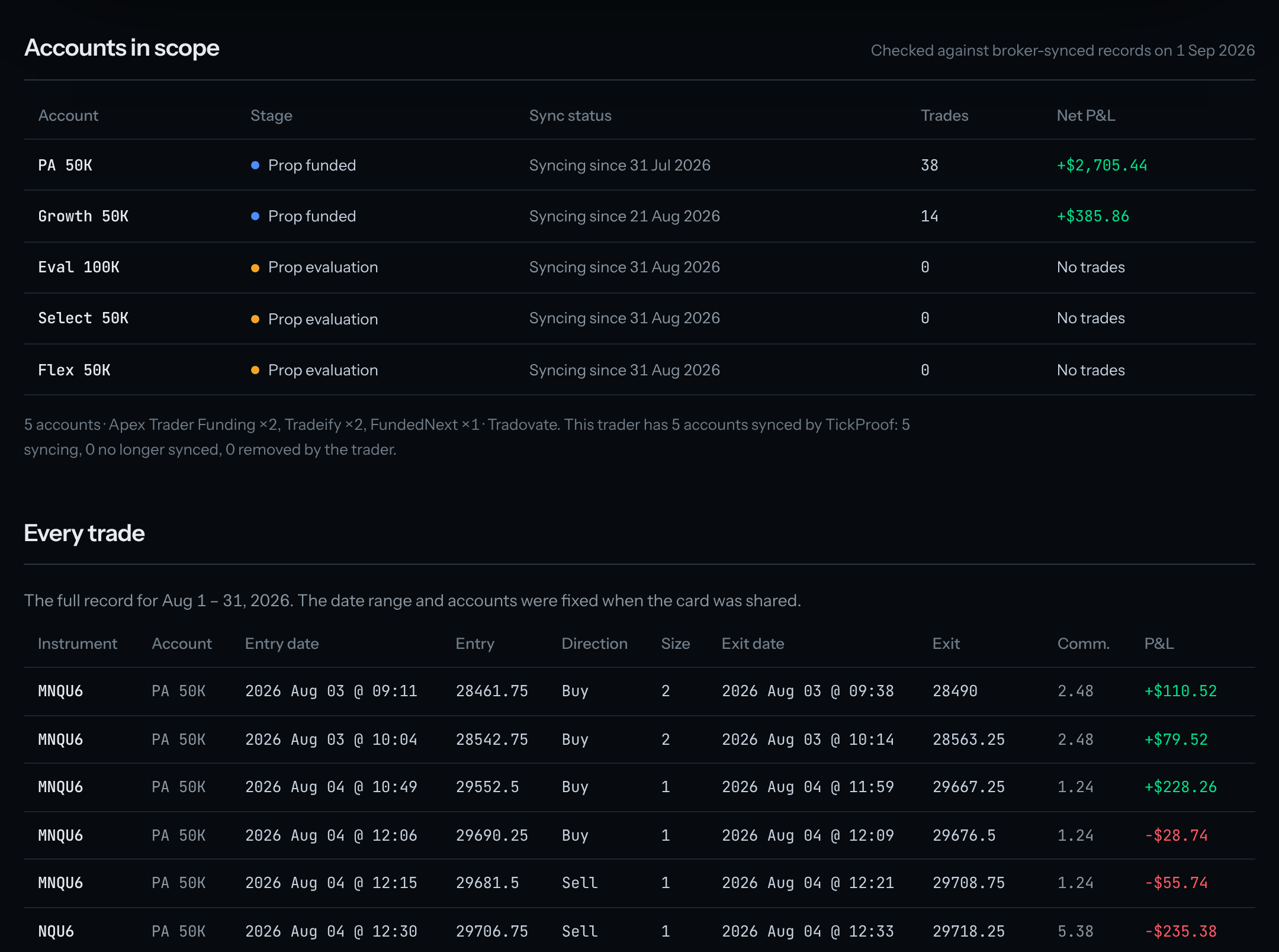
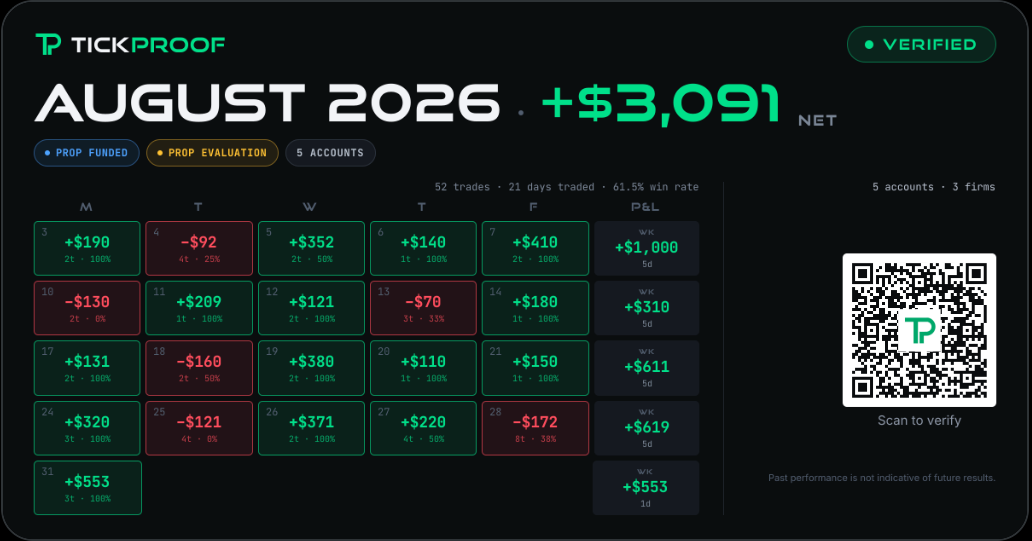
You can open the sample proof page (demo data) to see what a viewer gets.
The profile adds context around each proof
A trader still chooses the accounts and dates for each proof. TickProof’s public profile helps viewers examine those choices. It lists tracked accounts with their tracking dates and statuses. A calendar shows which trading days, from the trader’s first proof onward, are covered by a currently available proof.
That makes gaps visible. It does not disclose P&L for days or accounts outside the proofs. The profile also links the record to the trader’s connected X account. That identifies the linked social account; it does not establish who placed the trades.
How verification approaches compare
Broker-connected verification is available on several platforms. The differences lie in what each service checks and what viewers can inspect.
| Method or platform | What supports the result | What to check |
|---|---|---|
| P&L screenshot | An image supplied by the trader | Whether there is an independently accessible record behind it |
| CSV or manual-entry journal | Data supplied by the trader | Whether those entries are excluded from any verified results |
| TradeZella | Broker auto-sync, file upload or manual entry, all in the same journal; a shared trade link lets others replay a trade | Whether it’s just a screenshot, as screenshots can be easily edited |
| Myfxbook | Trading history checked against broker records; a separate trading-privileges check | Both verification statuses and any custom start date |
| Kinfo | Direct broker integrations; its documentation says trades cannot be added, updated or deleted manually | The accounts, period and details available to viewers |
| DT Terminal | Synced fills for verified trading records; manual entries labelled separately | Which accounts are public and which verification label applies |
| TickProof | Read-only Tradovate sync and fixed proof snapshots | Selected accounts and dates, account types, sync status and profile coverage |
TradeZella supports Tradovate broker sync, CSV uploads and manual trade entry. Its journal also lets users edit execution details and delete trades. These are documented features that give traders control over the record (Tradovate import options, trade editing and deletion).
Its sharing feature lets viewers open and replay a trade, but the sharing documentation describes no check that the displayed result matches an unedited broker record, or any indication of whether the trade was synced, uploaded or entered manually. A TradeZella sharing link, by itself, should therefore not be treated as independent verification of trading performance (trade sharing documentation).
Myfxbook distinguishes between verifying the trading history and verifying that the person connecting an account has trading privileges. Its custom start-date setting is visible to other users, who can also analyze the earlier history (Myfxbook verification, custom start dates).
Kinfo says it retrieves records directly through broker integrations and prevents users from manually adding, updating or deleting trades (how Kinfo works).
DT Terminal separates verified and self-reported records. It also states that traders can keep accounts private without disclosing those accounts to viewers (DT Terminal verification, verification limits).
TickProof focuses on futures prop firm traders using Tradovate. Its approach combines broker-only trade data with fixed proofs, account labels and public context about tracked accounts and coverage.
Provider descriptions checked on 27 October 2026.
What a verified trading record still can’t prove
Verification makes specific claims checkable. Its limits deserve the same attention as its safeguards.
Who placed the trades
Account access does not establish who made the trading decisions. Someone else could have traded the account, or trades could have been copied or automated. Connecting through Tradovate establishes access at the time of connection. Linking an X account identifies the connected profile. Neither establishes who executed each trade.
Whether every account was included
A proof covers the accounts its owner selected. TickProof shows context about other tracked accounts, including removed ones. It cannot show accounts or logins that were never connected, and it does not publish excluded accounts’ P&L through another proof.
Whether the dates tell a representative story
A winning month can be accurately verified while giving an incomplete impression of a trader’s performance. Check where the period starts and ends. A losing run immediately before the start date or after the end date may change how you interpret the result.
TickProof’s coverage calendar helps you spot gaps. It does not reveal the results inside those gaps.
Whether the record was tracked as it happened
TickProof’s initial sync can retrieve up to 730 days of broker history. A proof may therefore include trades completed before the account was connected. Those trades still come from the broker. The distinction is that the trader already knew the results when choosing to connect and share them. The proof page discloses how many trading days were imported from history.
Whether the P&L represents money the trader kept
Prop evaluations use simulated trading, and a Prop Funded label does not by itself establish that trading took place with live capital. An account label helps explain the context. It does not establish that the trader received the displayed P&L as a payment.
Whether a payout arrived
A trading record cannot establish that a prop firm paid the trader. TickProof reads payouts from Tradovate’s cash history into the trader’s private ledger. Payout information does not appear on its public cards or proof pages. A payout claim needs evidence of the payment itself, connected to the relevant account and dates.
Whether the broker’s data is accurate
Broker records provide a stronger basis for verification than an editable file supplied by the trader. They remain a source with their own possible errors or omissions. A verified record should always be read within that limit.
Whether an image of the card is authentic
Someone can edit a screenshot of a TickProof card. Use its QR code or link to open the public page, then compare the figures, account types and dates. A copied verification badge alone establishes nothing.
A quick checklist for checking trading results
Start with the linked record and work through these checks:
- Open the public page. A screenshot alone gives you little to verify.
- Read the full date range. Consider what may sit immediately before and after it.
- Check the account type. Live, funded, evaluation and paper results need different context.
- Inspect the trades. Look at losses, trade sizes, commissions and how much the total depends on a few trades.
- Check the account coverage. Look for excluded or removed accounts and unexplained gaps.
- Check when tracking began. Distinguish imported history from trades tracked after connection.
- Read the verification date and sync status. An older snapshot describes an earlier period, even if its page remains available.
- Assess payout claims separately. Look for payment evidence that matches the account, amount and dates.
These checks help you understand what the record supports. They cannot establish how someone may trade in the future.
Share a record people can check
Credible trading results need a clear path from the broker’s records to the figures a viewer sees. TickProof keeps that path direct: broker-synced trades, calculated figures and a fixed proof with a public trade list. Its account labels and profile coverage help viewers judge the scope of each result.
When you share, make that context easy to find. When you’re checking someone else’s results, open the proof page and read beyond the total. TickProof is in private beta, with a free plan for up to 3 active accounts. No card required.
Frequently asked questions
What are verified trading results?
They're P&L figures built only from trades a journal imports directly from the broker, with no manual entries or uploaded files, so a viewer can open every trade behind the number. Verified isn't a regulated term, so check how a platform gets its trades before trusting its badge.
Can a TickProof proof be faked or edited?
The proof itself can't be edited. It's a fixed snapshot of broker-synced trades, taken when the share is created, and its QR code opens a page with the full trade list, each account's type and the date TickProof verified it. A shared image can be altered, so check the linked page. A trader can revoke a proof, and its page then shows it as removed.
Why doesn't TickProof allow CSV uploads or manual entry?
Because a file can be edited before it's uploaded and a typed trade never happened at the broker. TickProof imports trades only from a read-only Tradovate connection, so every shared proof is backed by broker records. At launch it supports futures prop firm accounts on Tradovate.
Is a P&L record proof of a prop firm payout?
No. A trading record shows trades and the P&L they produced. A payout is money the firm sent you, and it's shown by the firm's own payout record, a bank statement or a transaction ID. Treat the two as separate claims and ask for evidence of each.
Keep reading
TradeZella alternatives for prop firm futures traders
Looking for a TradeZella alternative? Compare free and paid trade journals for prop firm futures traders: pricing, prop rule tracking and broker sync.
How to connect Tradovate to TradingView
Connect Tradovate to TradingView in five steps. Prerequisites, prop firm setup, the latency tradeoff, and how to fix the non-tradable symbol error.
Take Profit Trader rules explained: drawdown, consistency and payouts
How Take Profit Trader's three drawdowns trail, how the 50% consistency rule works, and when PRO payouts start, with worked numbers for Tradovate traders.